
Resources
- Docker on kali : https://www.kali.org/docs/containers/installing-docker-on-kali/
- Docker Windows images : https://www.reddit.com/r/docker/comments/xcd4ei/why_is_it_so_hard_to_work_with_windows_images/
- webassembly : https://www.youtube.com/watch?v=cbB3QEwWMlA
- opencontainers : https://opencontainers.org/ || spec
- dockerhub : https://hub.docker.com/
- Compose-spec : https://github.com/compose-spec/compose-spec/blob/main/spec.md
Commands
- Installing
# Debian sudo apt update && sudo apt install -y docker.io && sudo systemctl enable docker --now && docker -v # Not all features # Debian All features wget https://desktop.docker.com/linux/main/amd64/docker-desktop-amd64.deb install -m 0755 -d /etc/apt/keyrings curl -fsSL https://download.docker.com/linux/debian/gpg | gpg --dearmor -o /etc/apt/keyrings/docker.gpg chmod a+r /etc/apt/keyrings/docker.gpg echo \ "deb [arch=$(dpkg --print-architecture) signed-by=/etc/apt/keyrings/docker.gpg] https://download.docker.com/linux/debian \ bookworm stable" | tee /etc/apt/sources.list.d/docker.list > /dev/null apt-get update apt-get install ./docker-desktop-amd64.deb systemctl --user start docker-desktop # Ubuntu sudo snap install docker - series
- Info
docker info docker inspect node:latest service docker status docker history ddd-book:ch8.node # image history - Login
docker login -u fake - Version
docker --version # the docker verison
docker version # client and server (daemon) versions of apps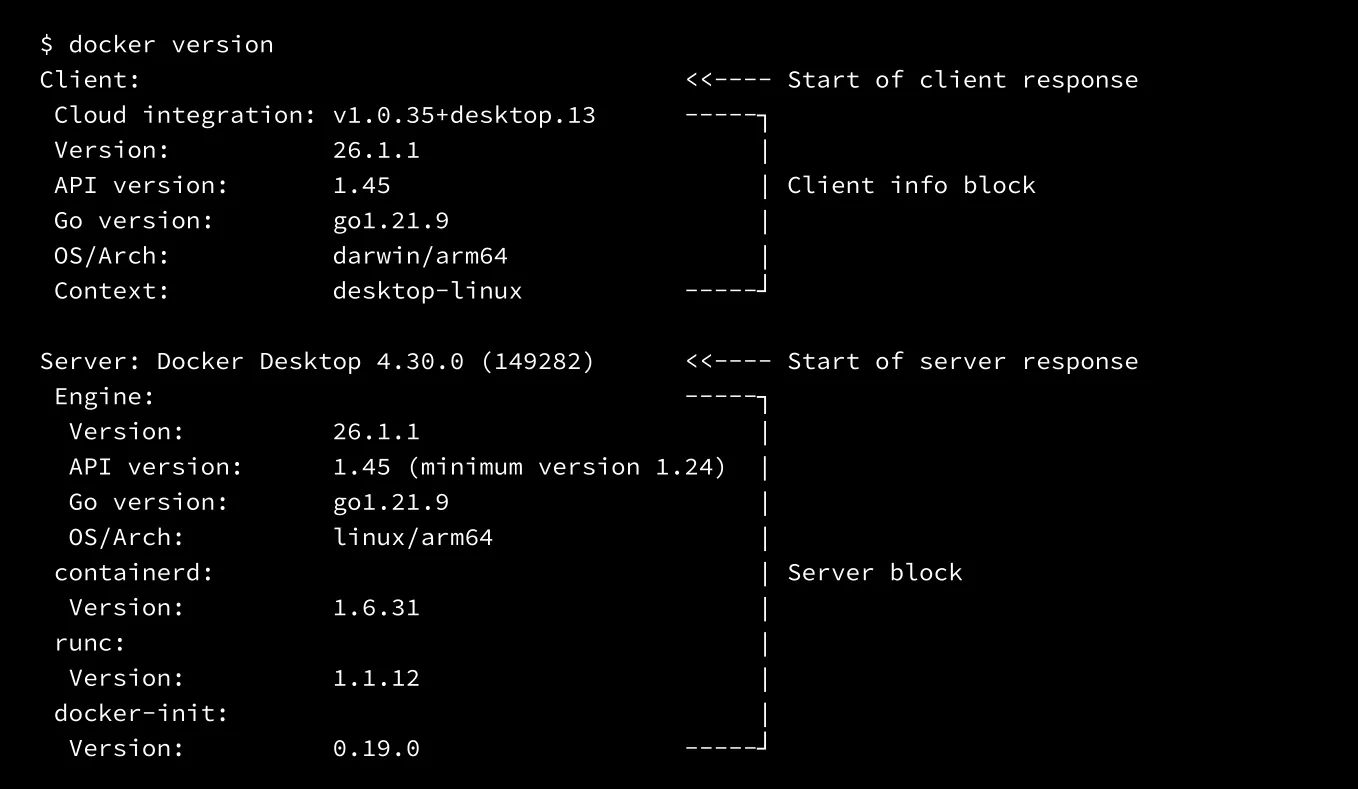
- Images
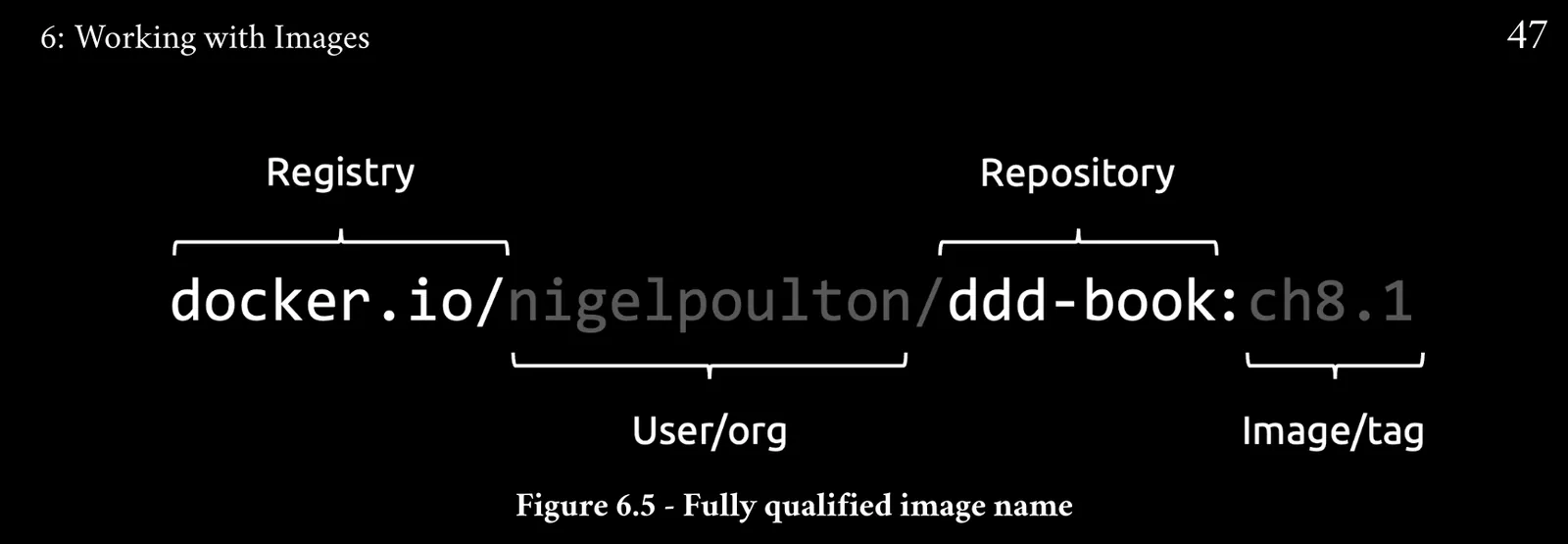
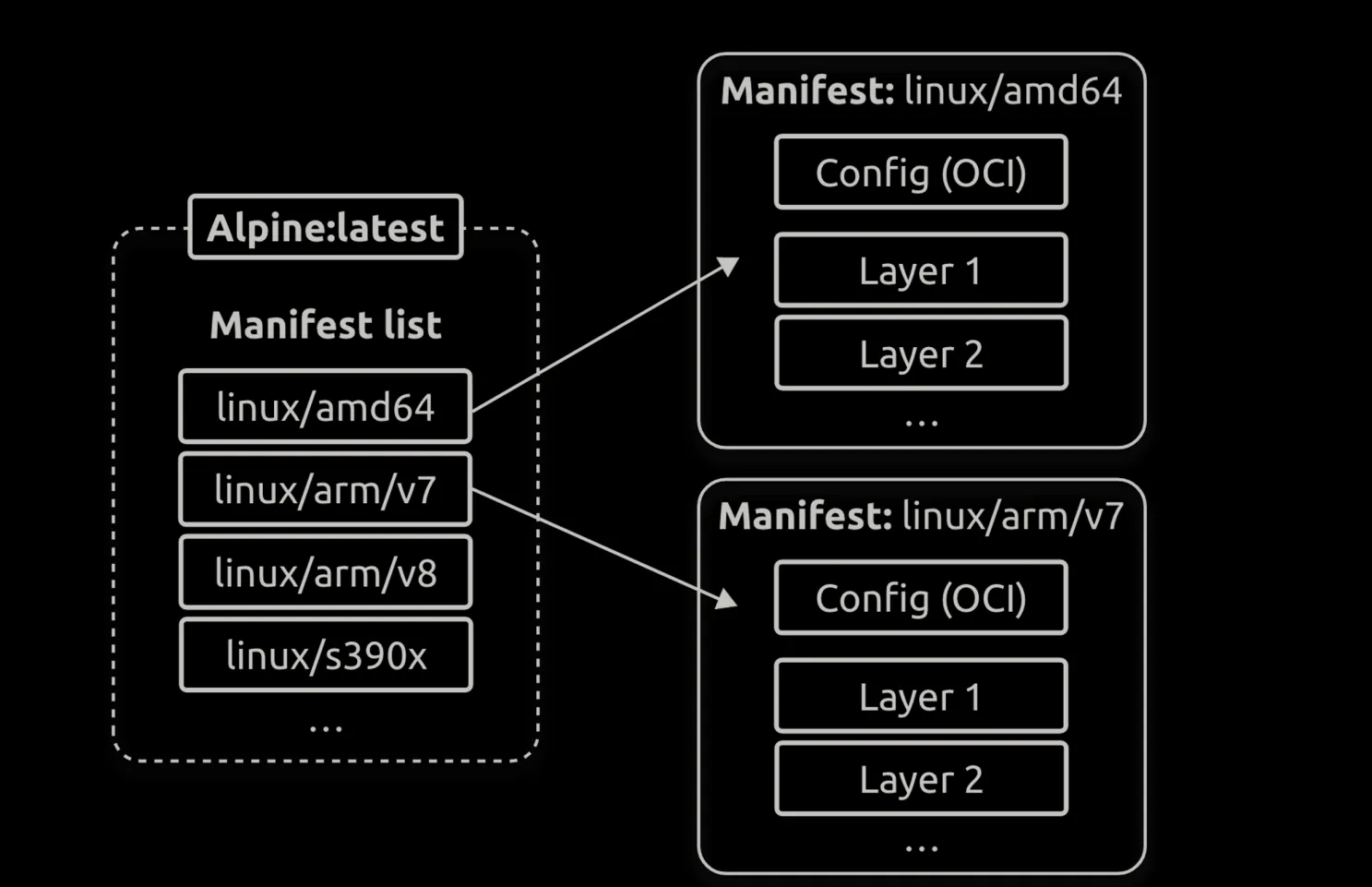
docker images # List docker pull ubuntu:latest # Downlaod (It assumed you wanted to pull the image tagged as latest if not provided any tags ) (It assumed you wanted to pull the image from Docker Hub) docker pull mongo:7.0.5 docker pull alpine docker pull ghcr.io/regclient/regsync:latest # Unofficial docker run --name test -it ubuntu:latest bash # Running docker inspect node:latest docker images --digests docker buildx imagetools inspect nigelpoulton/k8sbook:latest # archticture , digest , ... docker pull nigelpoulton/k8sbook@sha256:7e951c20052ed7fc3fb84daaa7063e0358a12f51eca376d9d9c9c0432b616190 curl "https://hub.docker.com/v2/repositories/nigelpoulton/k8sbook/tags/?name=latest" |jq '.results[].digest' # Kowing the digest docker manifest inspect alpine | grep 'architecture\|os' # mainfests docker rmi redis:latest # delete image (Will not delete the shared layers ) - Containers
# From image docker ps [-a] # List [all] docker start test # start container docker stop test # stop docker rm test # Deleting docker run -d --name ctr1 nginx # run if the images downloaed if not will download and run docker run -d --name webserver -p 5005:8080 nigelpoulton/ddd-book:web0.1 # for ports LOCAL:CONTAINER docker run --name ddd-ctr -it ubuntu:24.04 bash # run and bash # From github git clone https://github.com/nigelpoulton/psweb.git docker build -t test:latest . docker images docker run -d --name web1 --publish 8080:8080 test:latest docker port web1 # port mapping docker rm web1 -f # deleting docker exec -it webserver sh # Interactive Shell docker exec webserver ps # non Interactive (RCE) docker stop webserver # stop docker restart webserver # restart docker attach webserver # make ur terminal is the container terminal- Configrations
docker inspect nigelpoulton/ddd-book:web0.1 | grep Entrypoint -A 3 # Is there Entrypoint instruction
docker run --rm -d alpine sleep 20 # CMD
docker inspect webserver # show the inspect
- Configrations
- Info
- Dockerfile
git clone https://github.com/nigelpoulton/ddd-book.git docker init # To build the Dockerfile (Note: only in desktop version) docker build -t ddd-book:ch8.node . # Building docker tag ddd-book:ch8.node fake/ddd-book:ch8.node # Retagging Before uploading docker push fake/ddd-book:ch8.node # Don't forget the tag (Deafult is latest) docker run -d --name c1 -p 5005:8080 fake/ddd-book:ch8.node # run it remotly docker history ddd-book:ch8.node # History to create # Multi stage docker build -t multi:client --target prod-client -f Dockerfile-final . docker build -t multi:server --target prod-server -f Dockerfile-final .- Stage Example
FROM golang:1.22.1-alpine AS base WORKDIR /src COPY go.mod go.sum . RUN go mod download COPY . . FROM base AS build-client RUN go build -o /bin/client ./cmd/client FROM base AS build-server RUN go build -o /bin/server ./cmd/server FROM scratch AS prod COPY --from=build-client /bin/client /bin/ COPY --from=build-server /bin/server /bin/ ENTRYPOINT [ "/bin/server" ] - Multi Stage Example
FROM golang:1.20-alpine AS base

WORKDIR /src

COPY go.mod go.sum .

RUN go mod download

COPY . .

FROM base AS build-client

RUN go build -o /bin/client ./cmd/client

FROM base AS build-server

RUN go build -o /bin/server ./cmd/server

FROM scratch AS prod-client

COPY --from=build-client /bin/client /bin/

ENTRYPOINT [ "/bin/client" ]

FROM scratch AS prod-server

COPY --from=build-server /bin/server /bin/

ENTRYPOINT [ "/bin/server" ]
- Stage Example
- Compose
docker compose version docker compose up & # build from the docker compose file docker compose -f apps/ddd-book/sample-app.yml up & # you can specify the target file also docker compose up -d # run them docker network ls # networks docker volume ls # volume docker compose down # down the compose project docker compose ps # status docker compose top # list the processes inside each container docker compose stop # Stop the Compose project docker compose restart # Restart the Compose project docker compose down --volumes --rmi all # delete all the project with the voulume - Tips & Tricks
docker rmi -f $(docker images -q) # Delete all images
docker rm -f $(docker ps -a -q) # run all containers
docker rm -f $(docker ps -a -q) && docker rmi -f $(docker images -q)
docker cp ubuntu:/RedisModules-ExecuteCommand/module.so . # Copy
Notes
General
- Windows containers run Windows apps and require a host system with a Windows kernel. Windows 10, Windows 11, and all modern versions of Windows Server natively support Windows containers.
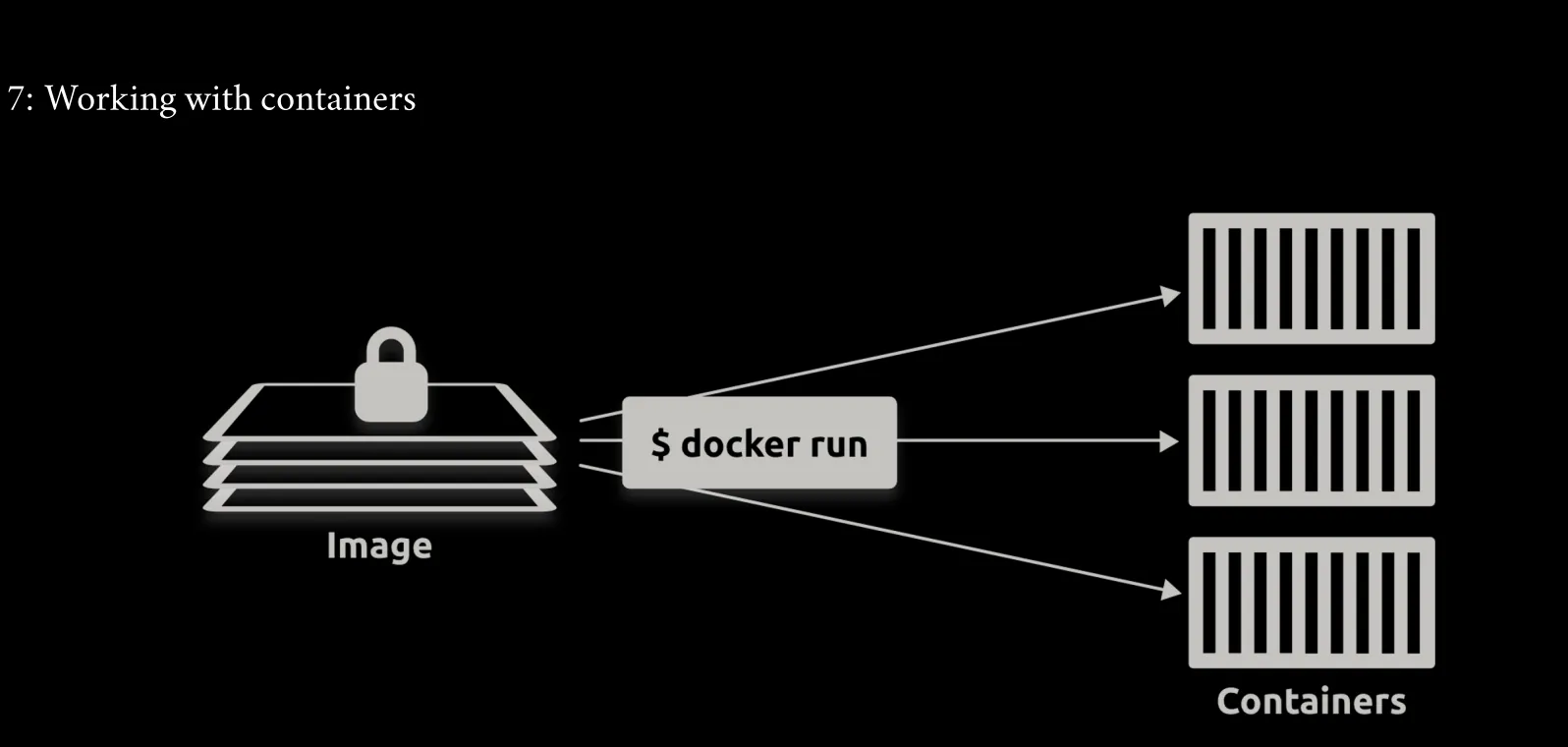
- You can even stop a container and create a new image from it.
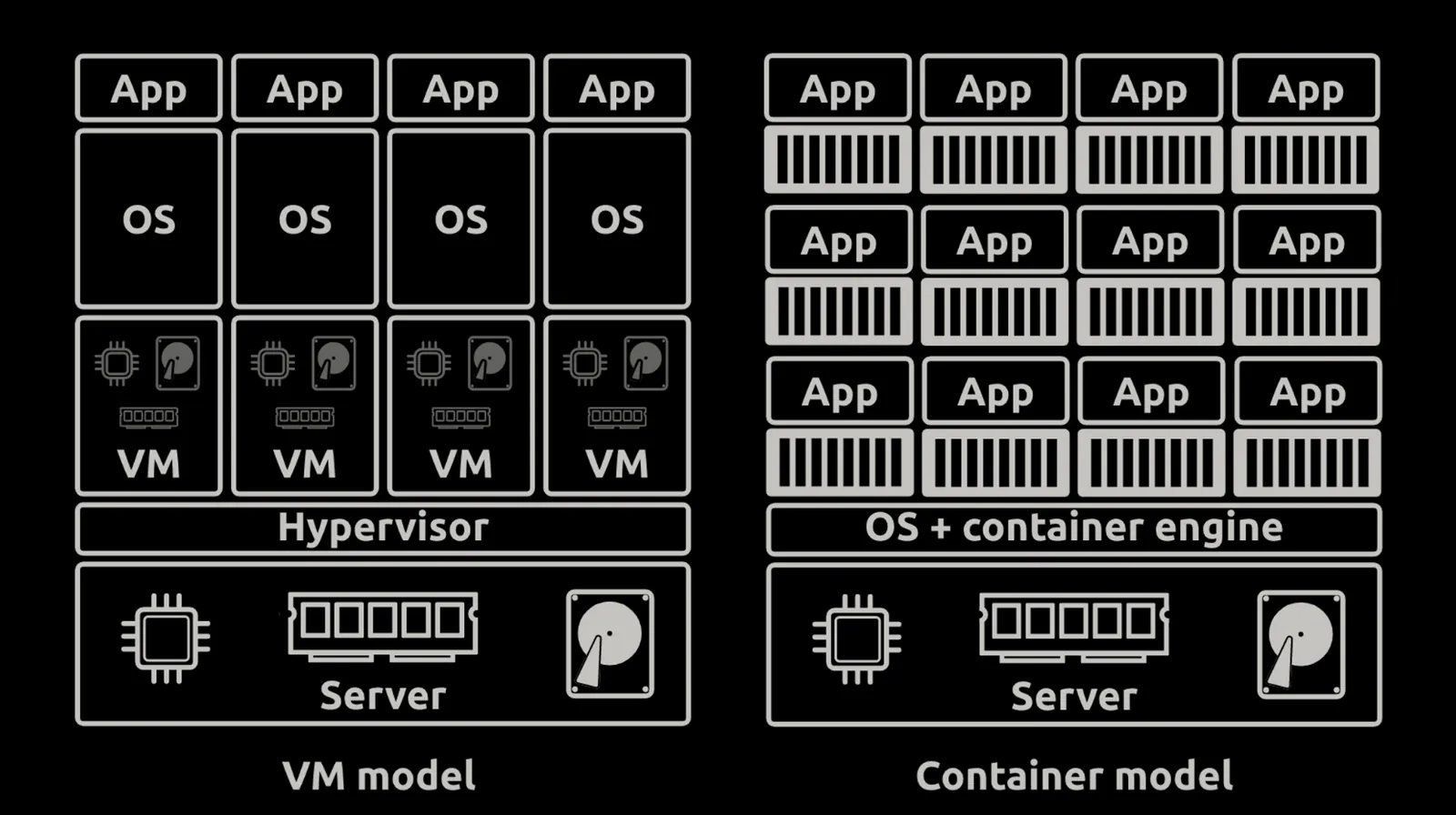
- Another thing that keeps images small is the lack of an OS kernel. This is because con- tainers use the kernel of the host they’re running on. The only OS-related components in most images are filesystem objects, and you’ll sometimes hear people say images contain just enough OS.
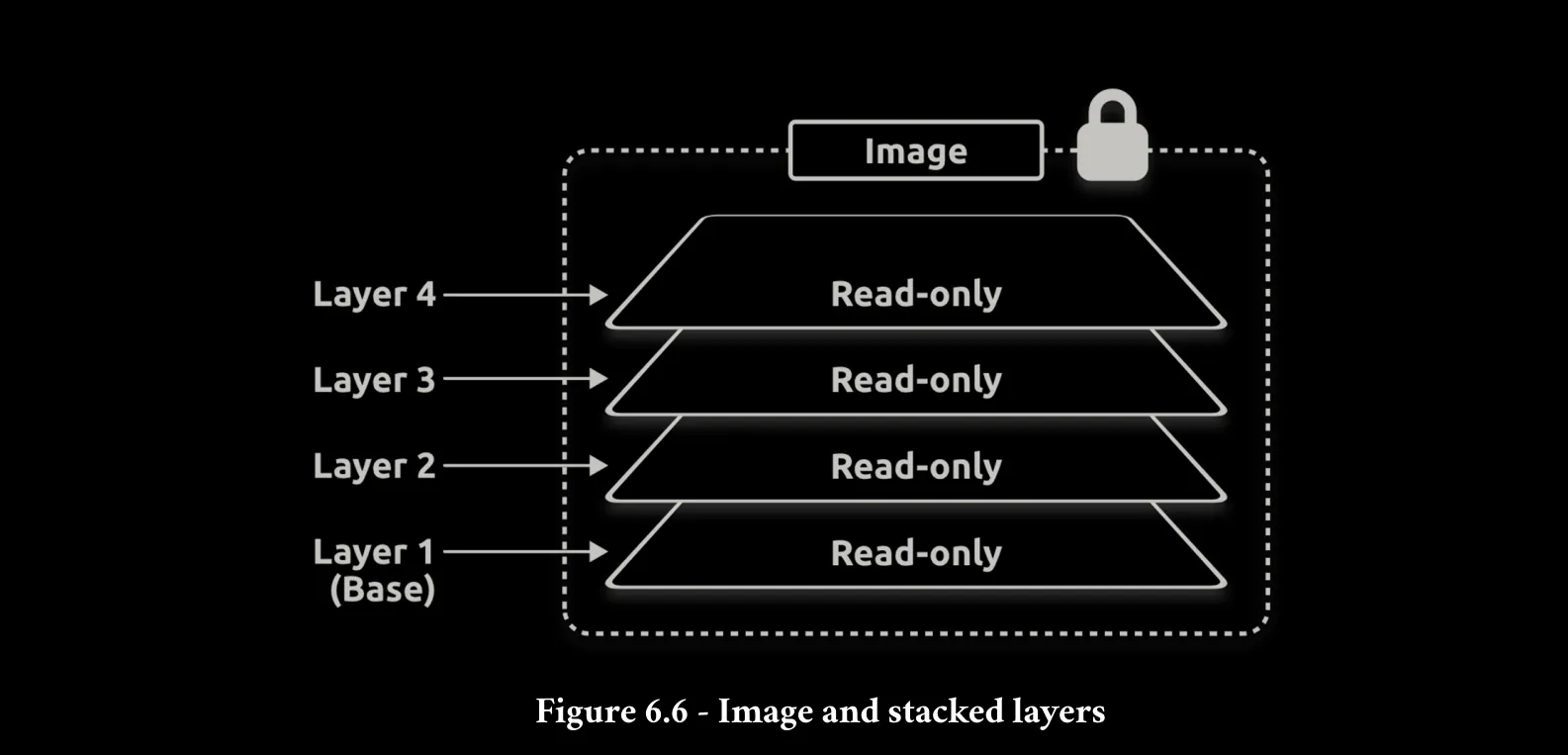
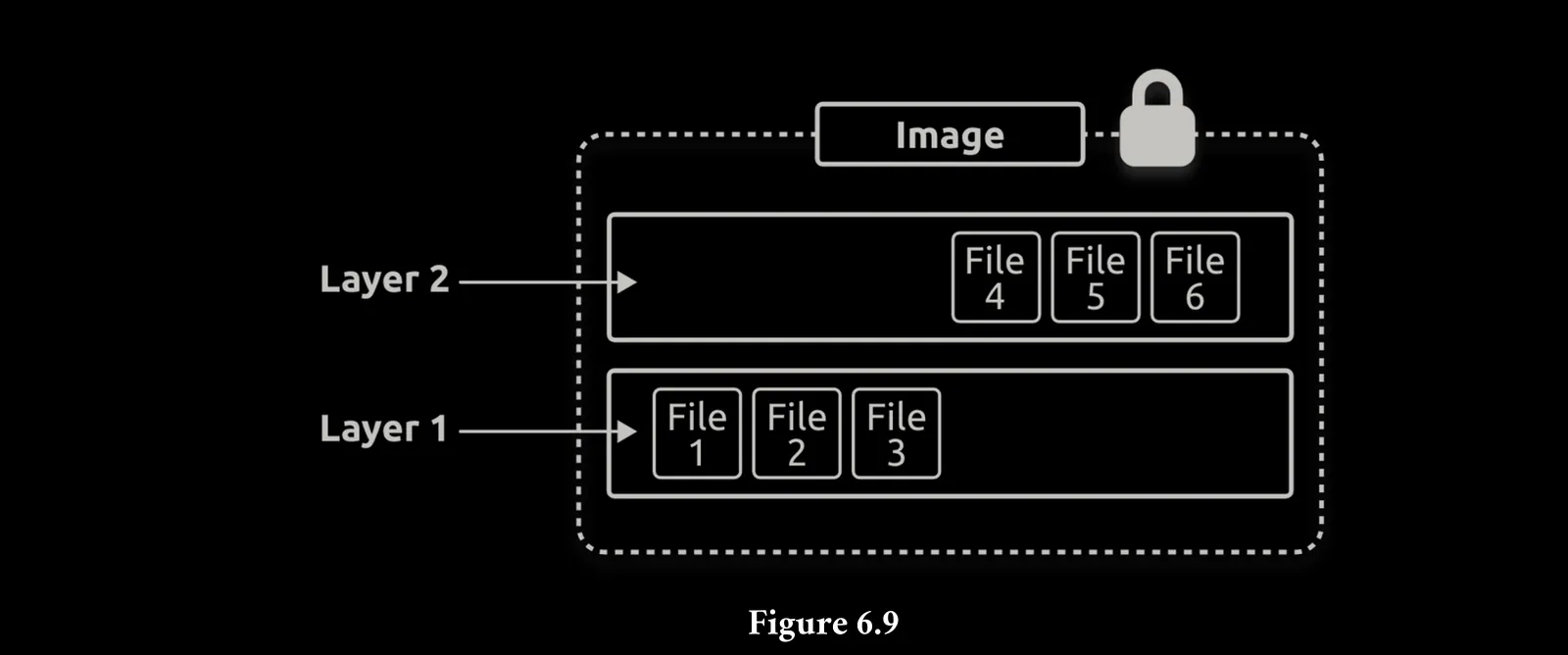
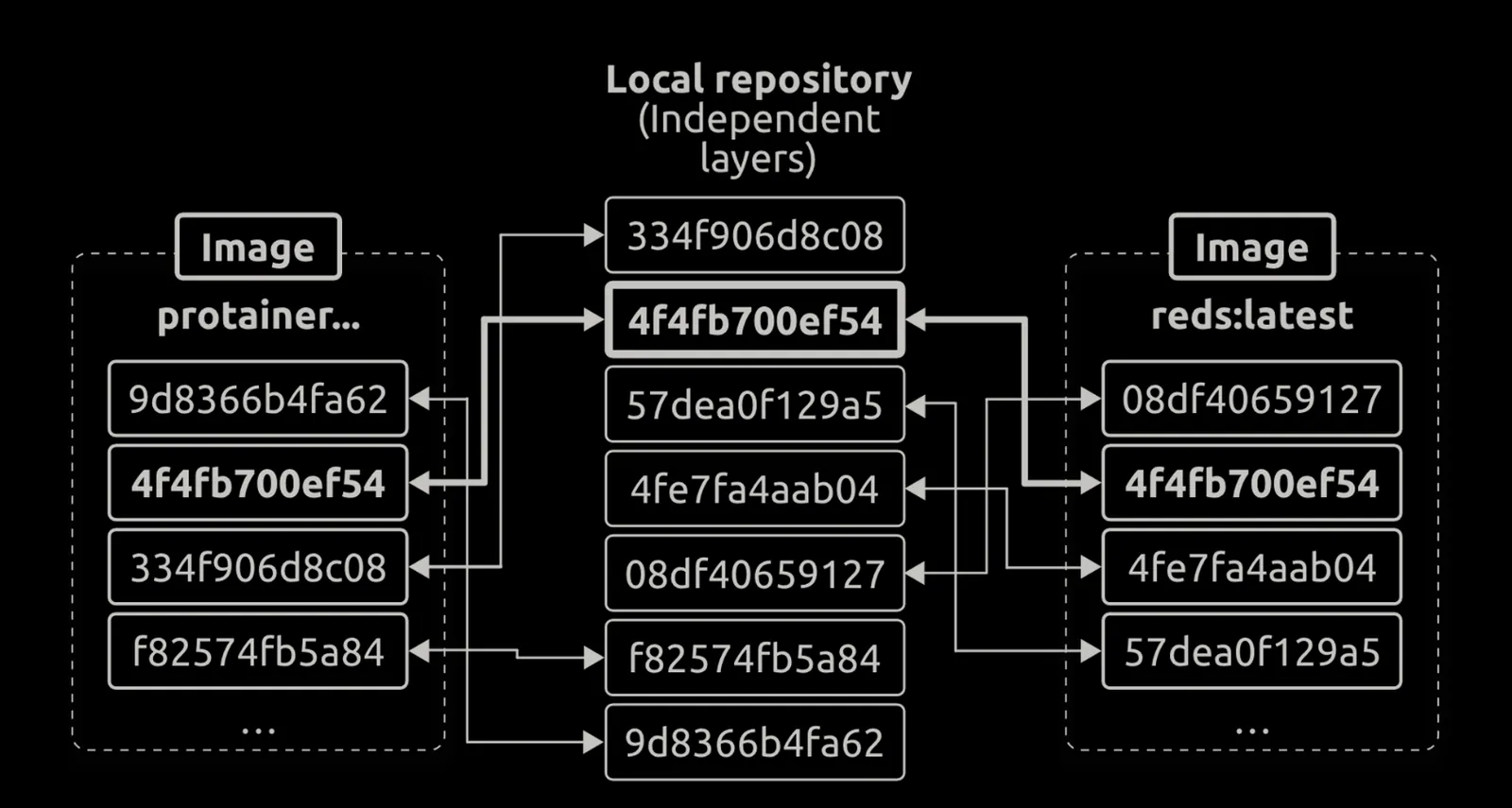
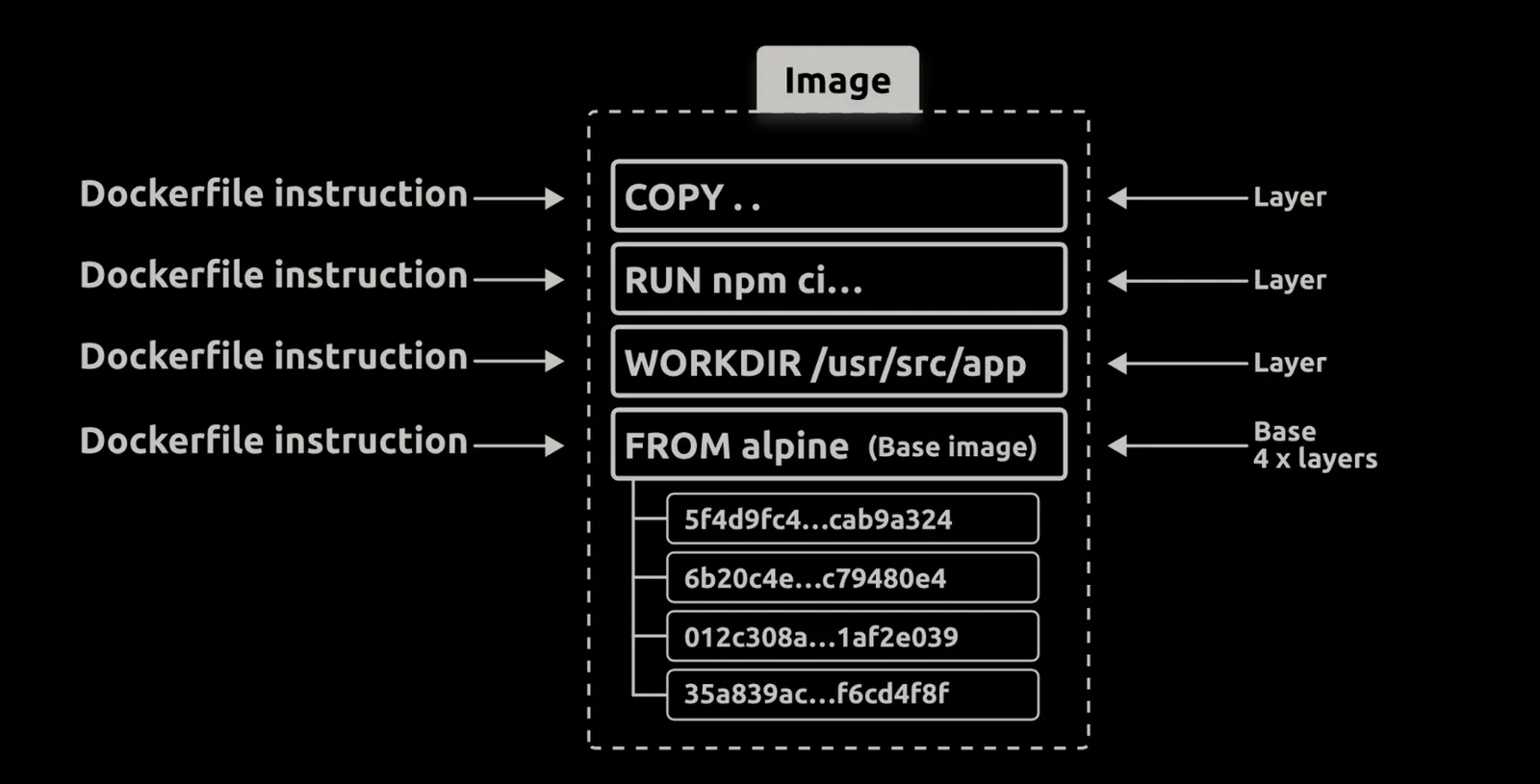
- images can share layers, and Docker is clever enough only to pull the layers it doesn’t already have.
- As previously mentioned, if you don’t specify an image tag after the repository name, Docker assumes you want the image tagged as latest. The command will fail if the repository has no image tagged as latest.
- Images tagged as latest are not guaranteed to be the most up-to-date in the repository.
- Images digests are a crypto hash of the image manifest file
- Layer digests are a crypto hash of the layer’s contents
- Docker compares hashes before and after every push and pull to ensure no tampering has occurred. However, **it also compresses images during push and pull operations to save network bandwidth and storage space on the registry. ** As a result of this compression, the before and after hashes won’t match. To get around this, each layer gets two hashes:
- Content hash (uncompressed)
- Distribution hash (compressed)
- Entrypoint instructions cannot be overridden on the CLI, and anything you pass in via the CLI will be appended to the Entrypoint instruction as an argument , Cmd instructions can be overridden by CLI arguments.
- To leave the container shell without stopping the container, use the detach key sequence: Press Ctrl + P then Ctrl + Q (in that order, one after the other).
Images How work
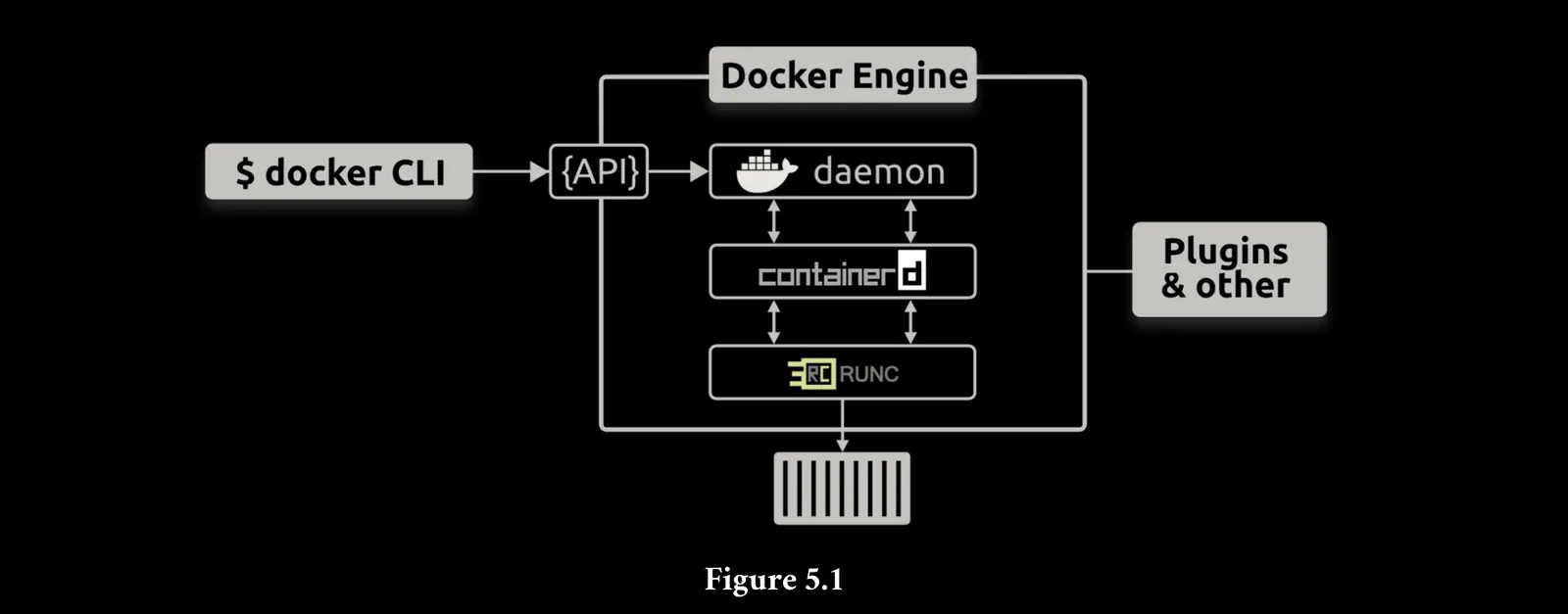
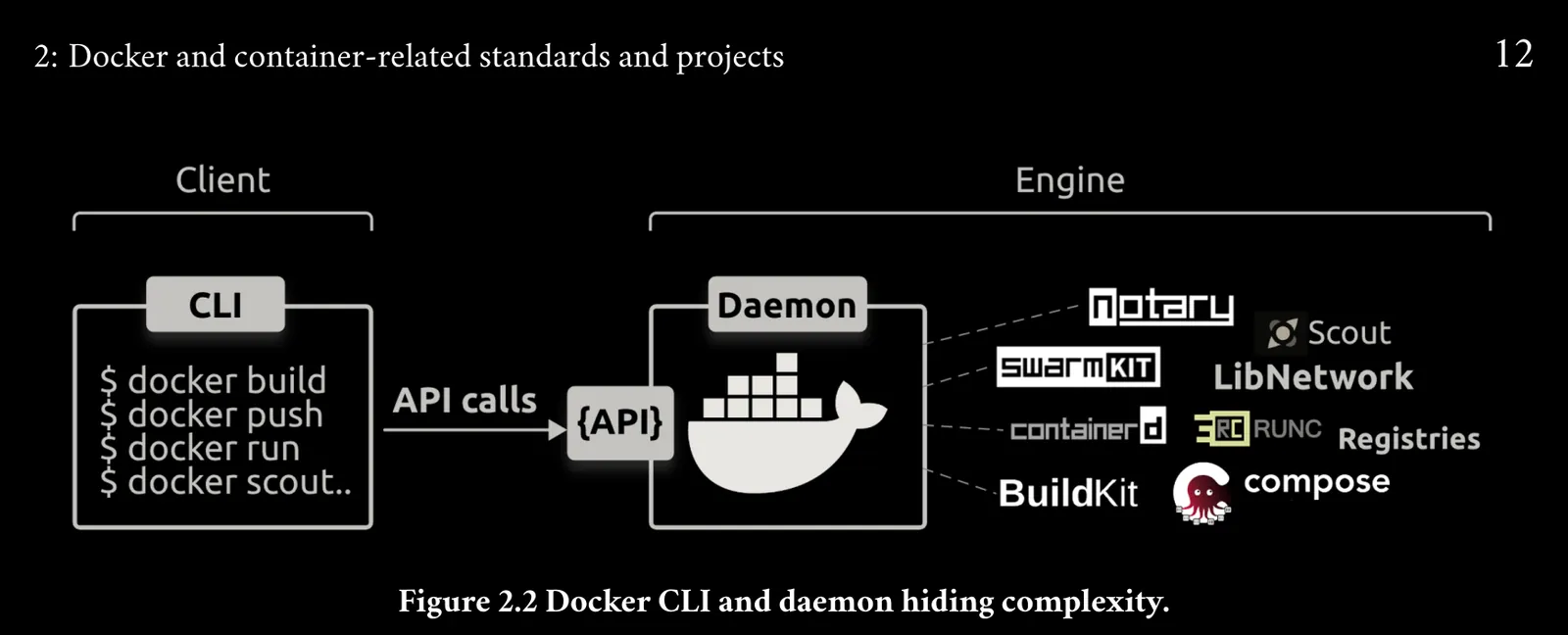
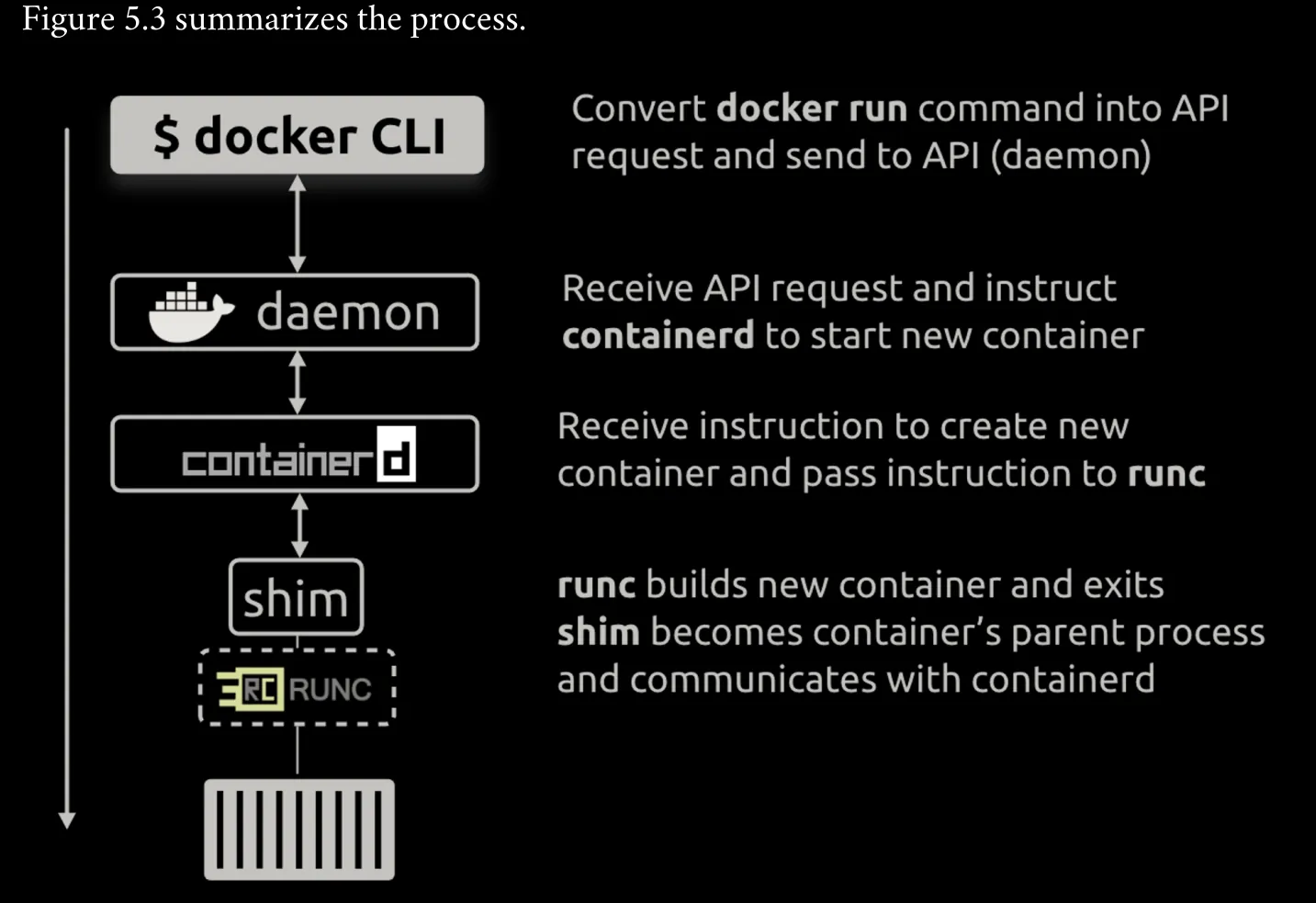
- How the CLI work into API
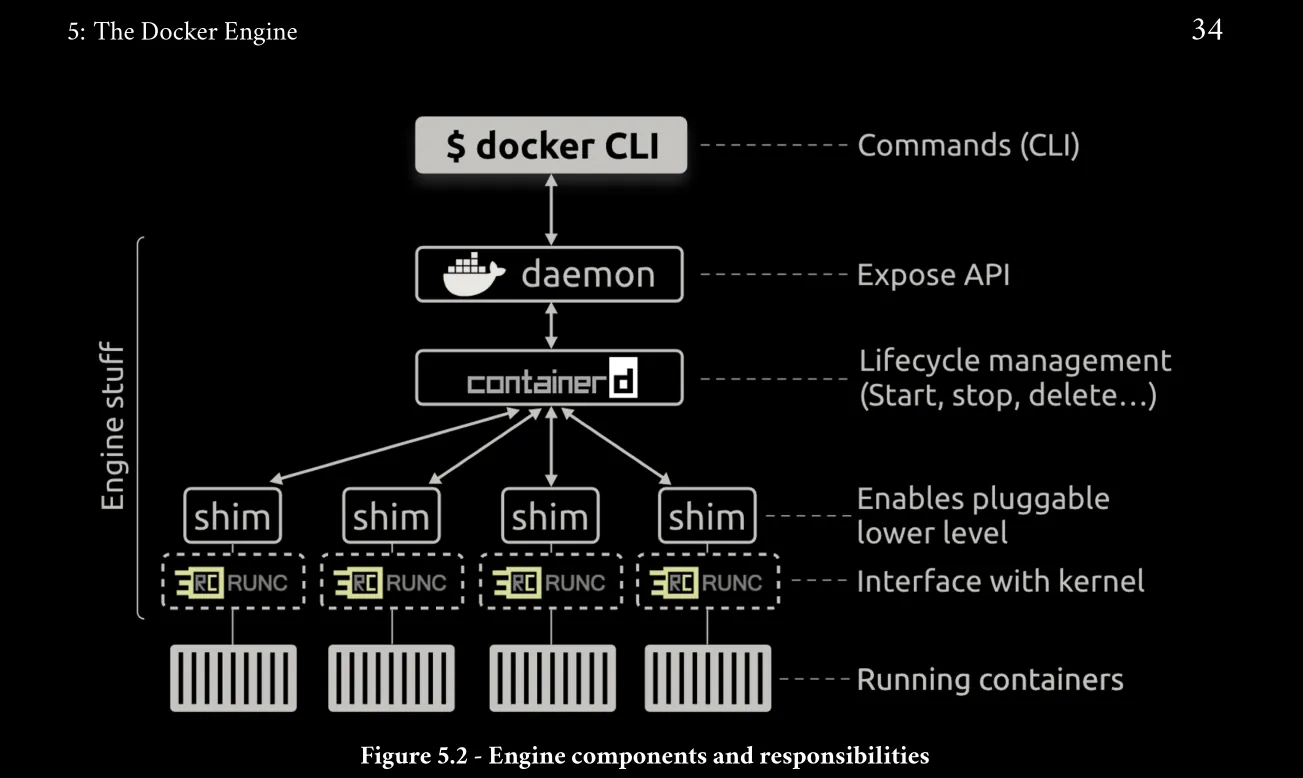
- How docker Engine work
- Images
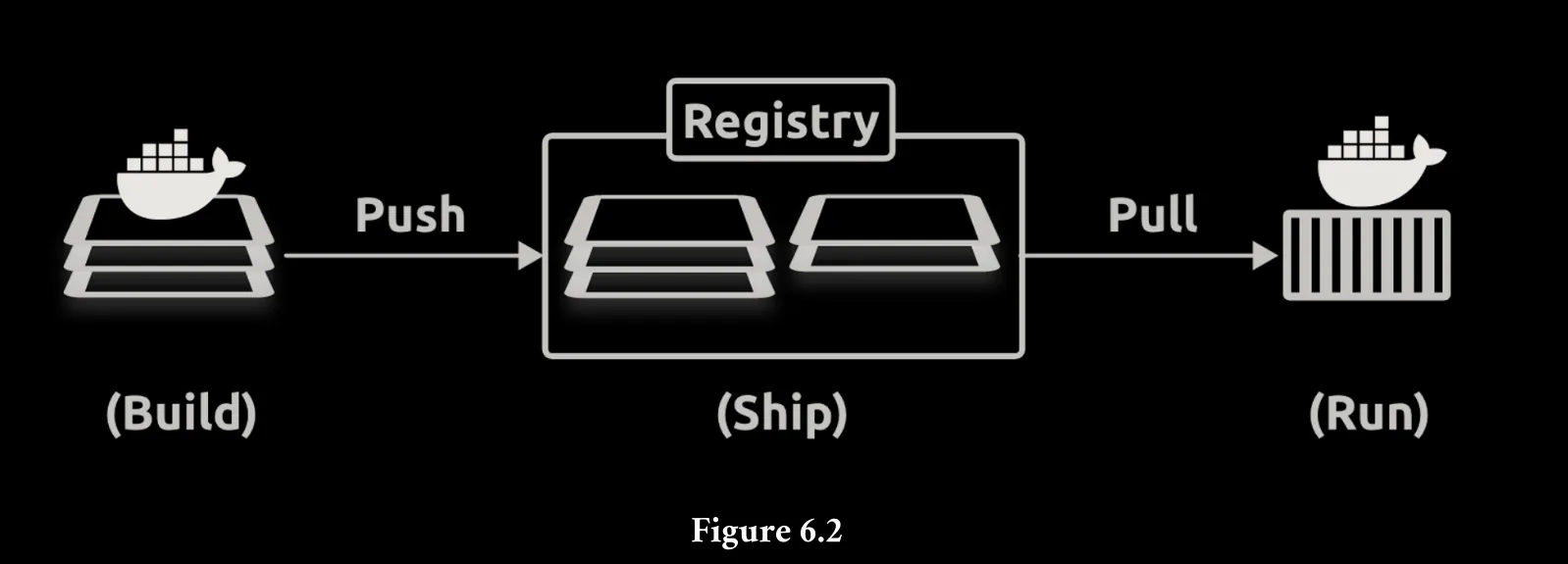
- Containers
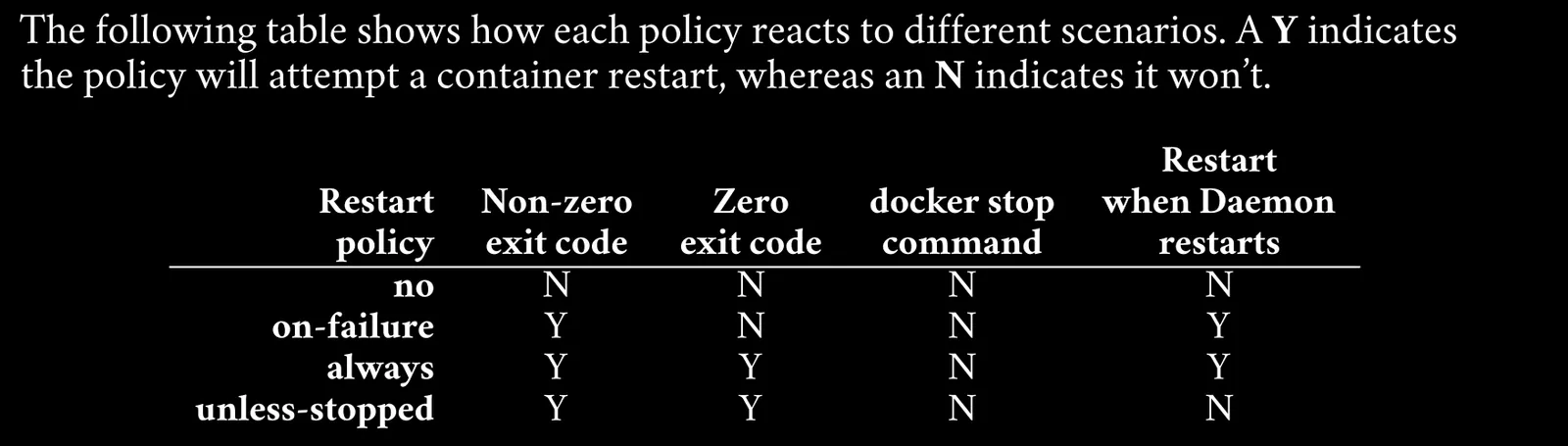
- Policies
- Layers
- Layers & Metadata
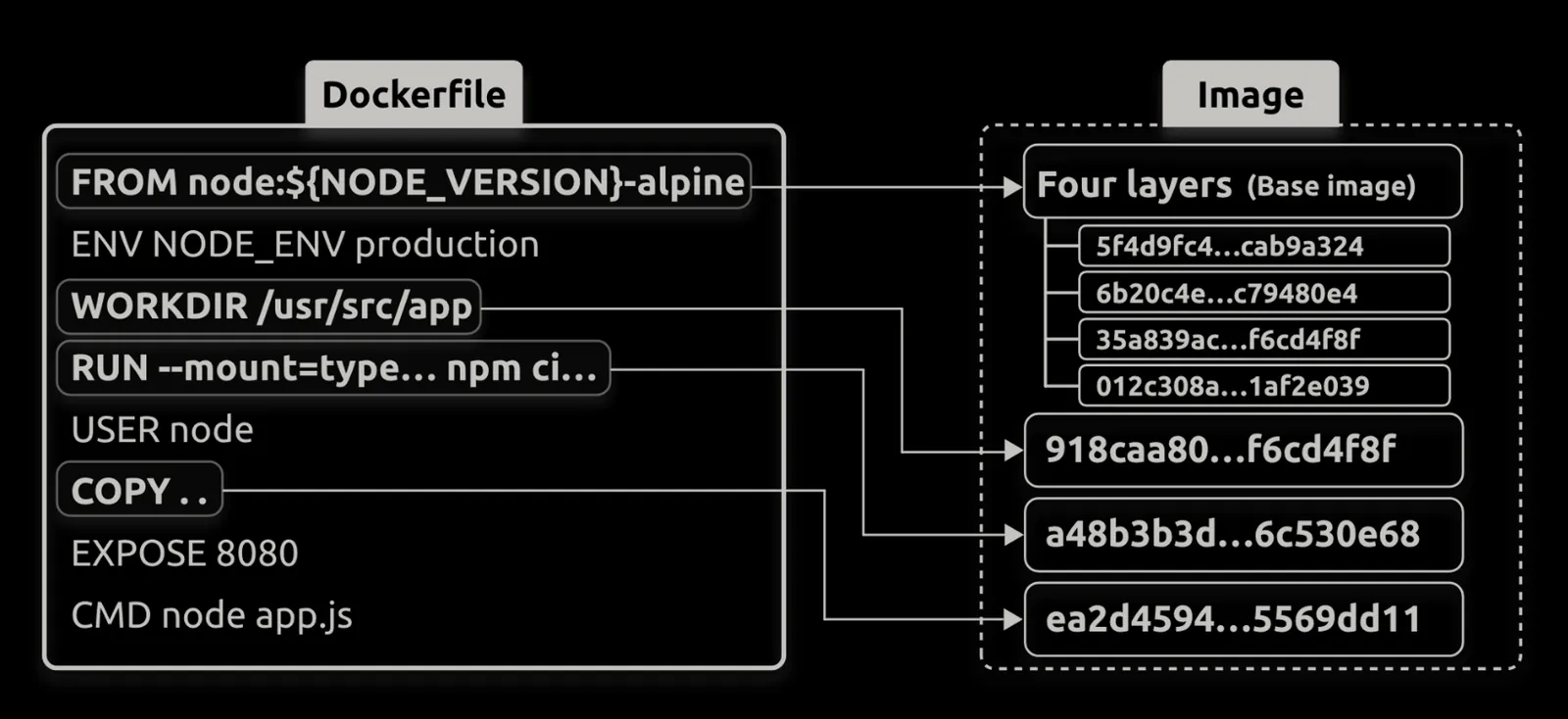
What is
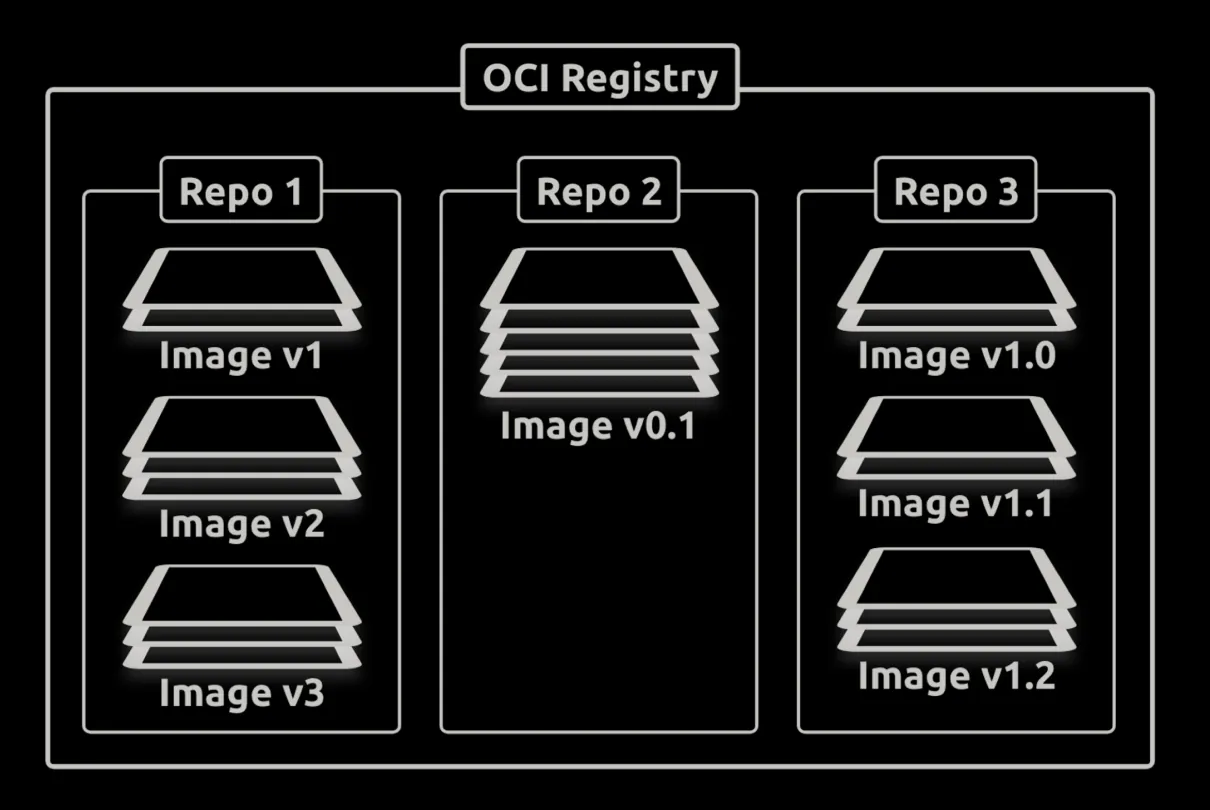
- Image : is a read-only package containing everything you need to run an application. This means they include application code, dependencies, a minimal set of OS constructs, and metadata. You can start multiple containers from a single image.
- Containers : is a run-time instances of images, and you can start one or more containers from a single image , The shared image is read-only, but you can write to the containers.
- Compose : file is the Compose file that describes how the app works