
Resources
- LXC : https://www.horizoniq.com/blog/proxmox-lxc/
- API : https://kenwardtown.com/2024/06/25/create-an-api-token-for-proxmox-ve/
Commands
- Shutdown
#!/bin/bash echo "Shutting down all VMs..." for vmid in $(qm list | awk '!/VMID/{print $1}'); do echo "Shutting down VM $vmid..." qm shutdown $vmid done echo "Shutting down all containers..." for ctid in $(pct list | awk '!/VMID/{print $1}'); do echo "Shutting down CT $ctid..." pct shutdown $ctid done echo "All done." - Remove Enterprise repositories
sed -i 's/^deb/#deb/g' /etc/apt/sources.list.d/pve-enterprise.list && echo "deb http://download.proxmox.com/debian/pve $(grep VERSION_CODENAME /etc/os-release | cut -d= -f2) pve-no-subscription" >> /etc/apt/sources.list && apt update - Images Converting
qemu-img convert -p -f qcow2 -O vmdk /mnt/pve/Warehouse/images/109/vm-109-disk-0.qcow2 /mnt/pve/Warehouse/vm-109-export.vmdk - Templetes Update
pveam update - LXC access (From the Cluster Console)
pct enter 111 - ifupdown2
apt install -y ifupdown2 ifreaload -a- Hot Reload
cat /etc/network/interfaces.new > /etc/network/interfaces
- Hot Reload
- OpenvSwitch
apt install openvswitch-switch - LXC
- Ubuntu
- Deafult apt
sudo apt update && sudo apt install -y curl wget vim git unzip htop tmux iproute2 net-tools dnsutils tcpdump nmap netcat-openbsd socat traceroute mtr iperf3 sysstat iotop iftop nload glances docker.io openssh-server rsync docker-compose-v2 - Adding DNS & Internet Connection
echo "nameserver 8.8.8.8" > /etc/resolv.conf
echo "nameserver 1.1.1.1" >> /etc/resolv.conf

ip route add default via 192.168.1.1 dev eth0 metric 50
- Deafult apt
- Ubuntu
Notes
Tips
- If you want the virtual machine to autostart as soon as the Proxmox node reboots, set the Start at boot option to Yes.
- Never fully depend on snapshots only. A snapshot is not a full backup. It is merely a state where the virtual machine is frozen in time. Always do a full backup of virtual machines for maximum protection. Snapshots are never included in the full VM backup. Snapshots are also never automatically deleted. As more and more snapshots are created, they will accumulate over time, consuming storage space.
- KVM VMs are single-queued, where sending and receiving packets occurs one at a time and not in parallel. Multiqueues remove this bottleneck by allowing sending and receiving in parallel by leveraging virtual CPU cores for parallel queues. Multiqueues are especially useful for a VM which is active on numerous clients
Proxmox Directory Structure
Proxmox comes with a distinct directory structure where all the configuration files and other necessary files are stored. This makes finding those configuration files in time of need very easy. The following table shows the location of the files stored and their functions:
Filename / Location Function /etc/pve/datacenter.cfgProxmox VE data center configuration file. Used to change options such as the default language, keyboard layout, default console, and so on. /etc/pve/corosync.confMain cluster configuration file. Prior to Proxmox VE 4.0, this was known as cluster.conf and can also be used to change the vote of a particular node. /etc/pve/storage.cfgPVE storage configuration file. This holds all the information of a local or shared storage system. /etc/pve/user.cfgUser list and access control configuration for all users and groups in the cluster. /etc/pve/authkey.pubPublic key used by the ticket system. /etc/pve/ceph.confWhen a Ceph cluster is integrated with Proxmox, this configuration file is generated for the Ceph cluster. /etc/pve/vzdump.cronCluster-wide backup tasks that are not specific to a single node. This file should not be edited manually. All the entries are auto created from the Backup menu on the GUI. /etc/pve/priv/shadow.cfgShadow password file that holds all usernames and their encrypted passwords. /etc/pve/priv/authkey.keyPrivate key used by the ticket system. /etc/pve/priv/ceph.client.admin.keyringAuthentication keyring for a Ceph cluster. This is only created when Ceph is integrated with Proxmox. /etc/pve/priv/ceph/<storage_id>.keyringKeyring used to attach the Ceph RBD storage. /etc/pve/firewall/<vmid>.fwFirewall rules for all VMs. /etc/pve/nodes/<name>/pve-ssl.pemPublic SSL key for the web server. Used to access the Proxmox web GUI. /etc/pve/nodes/<name>/priv/pve-ssl.keyPrivate SSL key. /etc/pve/nodes/<name>/host.fwFirewall rules for the Proxmox host. /etc/pve/nodes/<name>/qemu-server/<vmid>.confVirtual machine configuration data for KVM VMs. /etc/pve/nodes/<name>/lxc/<vmid>.confVirtual machine configuration data for LXC containers. /etc/pve/.versionFile versions’ data to detect file modifications. /etc/pve/.membersInformation nodes that are members of the cluster. /etc/pve/.vmlistList of all VMs in the cluster. /etc/pve/.clusterlogLast 50 entries of the cluster log. /etc/pve/.rrdMost recent entries of RRD data.
Proxmox Disk Cache Options (KVM/QEMU)
A technical breakdown of how Proxmox handles Guest OS disk I/O, Host Page Caching, and flush (
fsync) commands.
Cache Option Linux Flags Host Cache (RAM) fsyncFlushesSafety & Speed Best Use Case No cache (Default) O_DIRECTBypassed Respected Safe / Fast 95% of VMs. Best balance. Prevents double-caching in RAM. Direct sync O_DIRECT,O_DSYNCBypassed Forced Safest / Very Slow Legacy VMs that cannot properly send flush commands. Write through O_DSYNCReads Only Forced Safe / Slow Writes Specific read-heavy workloads on slow physical spinning disks. Write back None Reads & Writes Respected Risky / Very Fast High I/O workloads, but data in transit is lost if the host loses power. Write back (unsafe) None Reads & Writes Ignored Fatal / Absolute Fastest OS Installation ONLY. Switch back to No cacheafter installing Windows.
Proxmox Storage Types
A technical breakdown of the natively supported storage plugins in Proxmox, how they manage data under the hood, and what they are used for.
Storage Type Architecture Scope Key Features & Use Case What it Stores Directory File-Level Local Standard Linux file system (ext4/xfs). Safe, bulk storage. (e.g., your Warehousedrive).ISOs, Backups ( .vma.zst), Templates,.qcow2disks.LVM-Thin Block-Level Local Raw block devices. High speed, thin-provisioning, and supports instant snapshots. (e.g., your local-lvm).VM / LXC Disks ONLY. ZFS Block & File Local Replaces hardware RAID. Copy-on-Write, prevents data corruption, compression, snapshots. RAM heavy. VM/LXC Disks, ISOs, Backups, Templates. NFS File-Level Shared Connects to an external NAS over the network. Enables live migration of VMs between nodes. ISOs, Backups, Templates, .qcow2disks.Ceph RBD Block-Level Shared Distributed cluster storage. Provides true High Availability (HA). Requires 3+ physical servers. VM / LXC Disks ONLY. GlusterFS File-Level Shared Distributed network file system. Shared storage across nodes, but Ceph is generally preferred for heavy VM I/O. ISOs, Backups, Templates, .qcow2disks.
Proxmox vNIC Models
A breakdown of the virtual network card models available in Proxmox KVMs.
vNIC Model Type Performance Best Use Case VirtIO Paravirtualized Maximum (10Gbps+) Default choice. Requires manual driver installation on Windows. Best for internal AD labs and C2 traffic. Intel e1000 Emulated Moderate (1Gbps) Legacy OS support or Sandbox Evasion. Tricks malware/EDR into seeing physical Intel hardware. Realtek RTL8139 Emulated Slow (10/100Mbps) Very old legacy operating systems (Windows XP / 2003). VMware vmxnet3 Paravirtualized High Only used when migrating existing VMs directly from VMware ESXi environments.
- For Windows, the VirtIO interface driver can be downloaded from https://github.com/virtio-win/virtio-win-pkg-scripts/blob/master/README.md.
- For Mac OS, the VirtIO interface driver can be downloaded from https://github.com/pmj/virtio-net-osx.
Photos
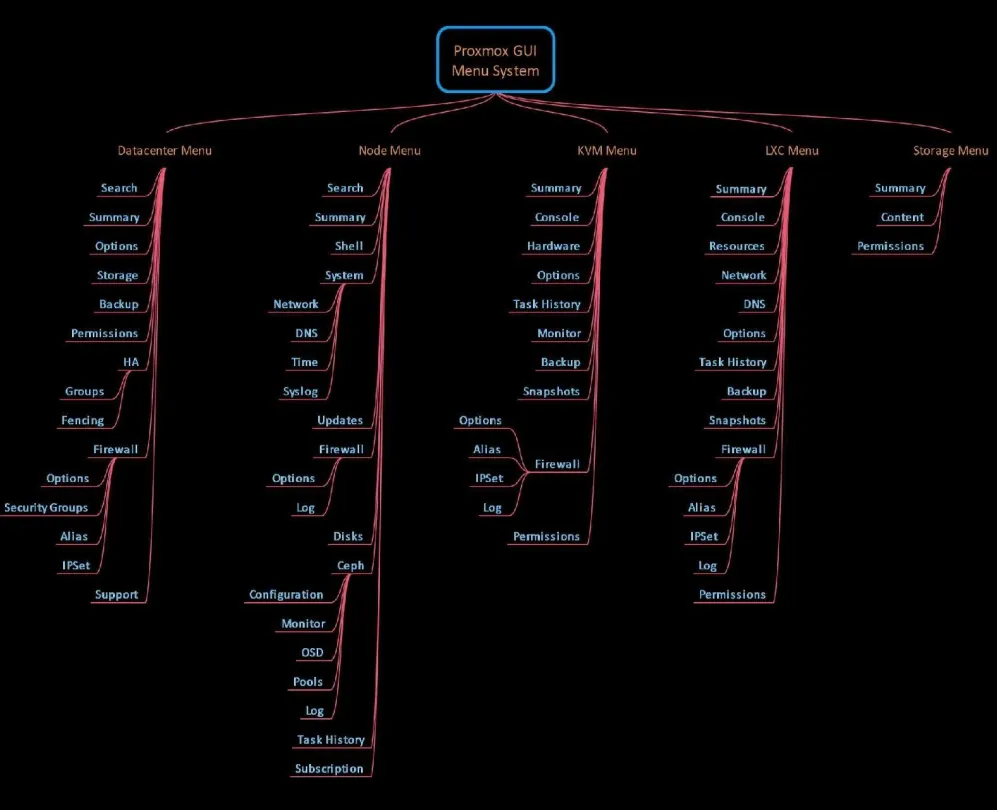
- Proxmox GUI Menu System
Proxmox User Management: PVE vs. PAM Realms
1. The PVE User (Virtual Web User)
Best For: Players, friends, or isolated administrative accounts.
- They exist only inside the Proxmox database.
- They cannot SSH into the physical server on Port 22.
Creation (GUI Only):
- Datacenter > Permissions > Users > Add.
- Enter a username and strong password.
- CRITICAL: Set Realm to
Proxmox VE authentication server.
2. The PAM User (Physical OS User)
Best For: Your master emergency access account.
- They are real users on the underlying Debian Linux OS.
- They can SSH directly into the bare-metal server on Port 22.
Creation (Two-Step Process):
- CLI (The OS Level): Open the Proxmox root shell and type
adduser <username>. Follow the prompts to set a password.- GUI (The Web Sync): Go to Datacenter > Permissions > Users > Add. Enter the exact same username.
- CRITICAL: Set Realm to
Linux PAM standard authentication. (No password needed here; Proxmox checks the Linux OS).
The RBAC Trap (Applies to BOTH Users) zero permissions. They will see a completely blank dashboard until you give them keys.
By default, new users have
How to grant power:
- Datacenter > Permissions > Add > User Permission.
- Path:
/(Controls the whole datacenter. Use/vms/100to restrict to a single VM).- User: Select the account you just created.
- Role: > > *
Administrator: Full hypervisor control.
PVEVMAdmin: Can create/destroy VMs, but can’t touch physical storage/network.PVEVMUser: Can only start/stop/view existing VMs.
Abbreviations
- S.M.A.R.T. stands for Self-Monitoring, Analysis and Reporting Technology. It’s a monitoring system built into almost all modern hard drives (HDDs) and solid-state drives (SSDs). Its job is to keep an eye on the drive’s health and warn you before it fails completely.
- cluster is a group of interconnected physical servers (nodes) that communicate to function as a single virtualization unit, managed via a unified web interface.